longbox v2.5.0

Your library. Your files. On your machine.

longbox is a desktop vault for manga, manhwa, manhua, comics, image sets and episodes — with a real browser built in. You read the sites you already read; longbox learns what a title's page looks like once, and files everything into folders you can open with anything.

Install and open — nothing else to set up. No account, no cloud, no telemetry. All releases

The library

Everything you own, filtered the way you think

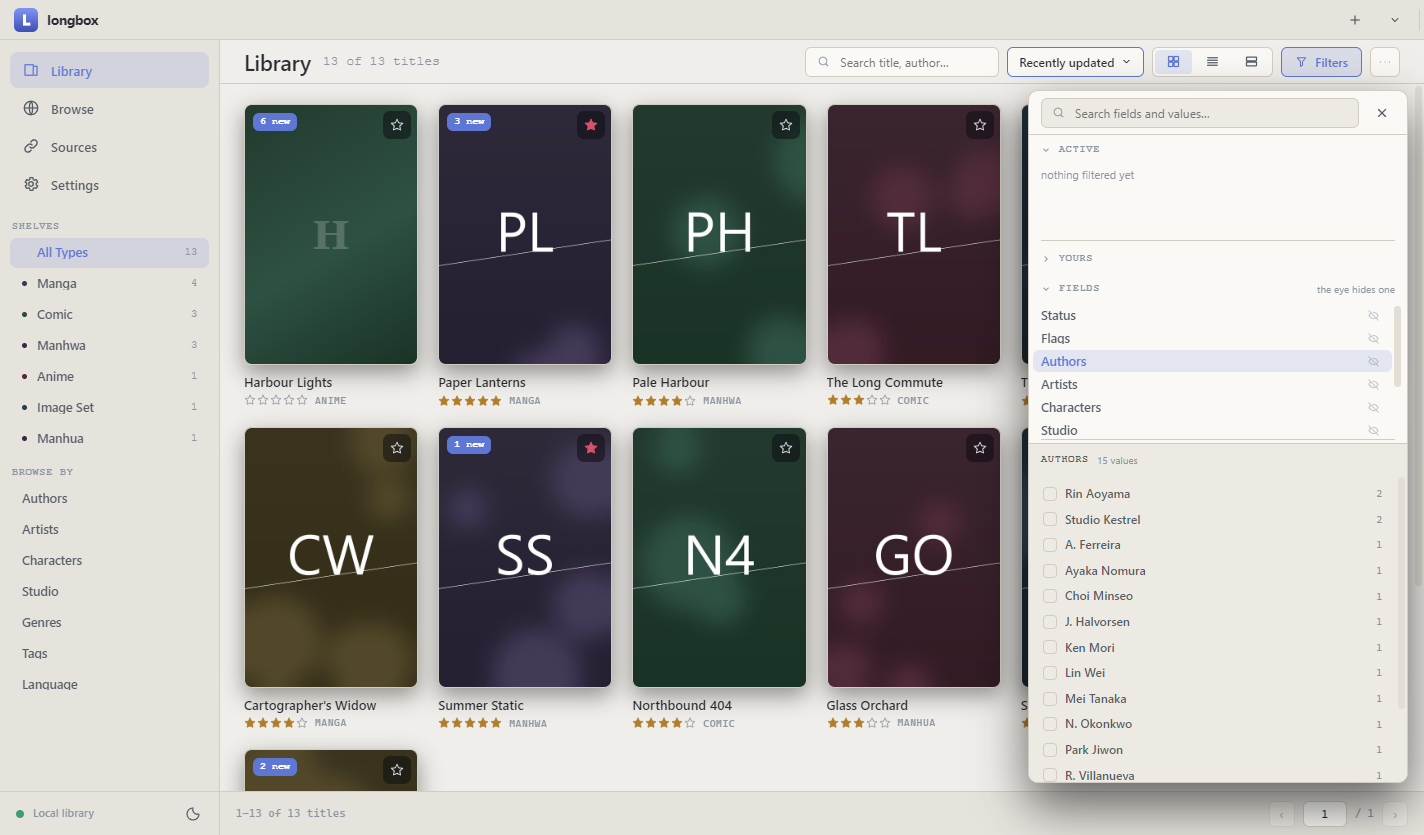
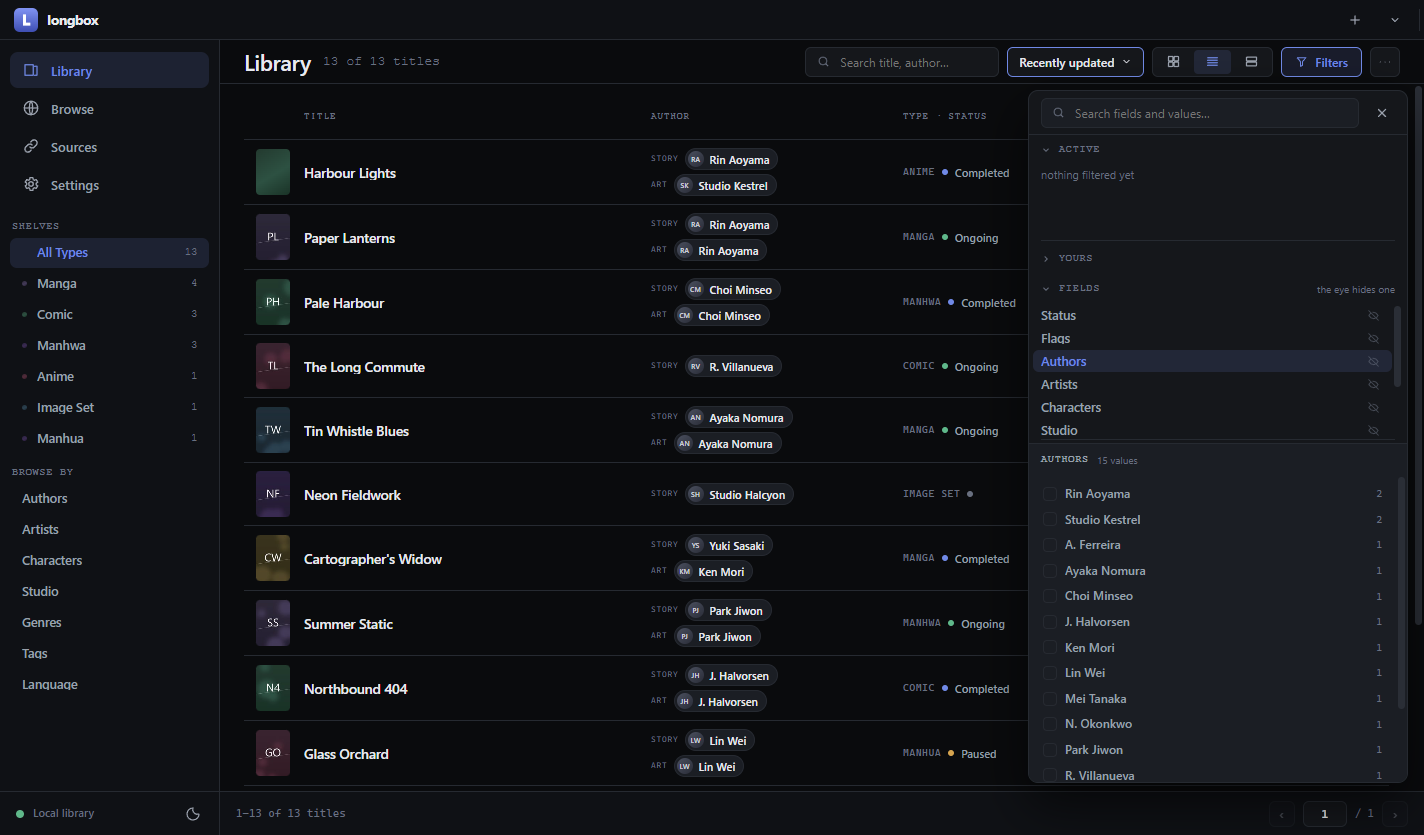
Grid, dense list and expanded views. Linked faceted filters — type, status, genres, tags, language, authors, artists, characters, studio, content flags — with include and exclude, so counts always reflect what is actually left. Shelves narrow by type; Browse by regroups the whole library along any list field, and each shelf keeps its own list of those. Favourites, ratings and reading progress are a separate layer: editing a title's metadata can never roll them back.

A title may wear several covers, and the grid fades through them while you hover it. One you never gave a cover is not a blank tile: it shows what it actually holds — the first page of each downloaded chapter, or an episode's own preview frame.

The fields themselves are yours: add your own to the registry — text, description, number, list or date — and decide which appear on title pages, in the filters, and in the capture dock of each source. A type is a promise about the data: a field can stop being a number or a date but never become one, and a list folds into text only on a separator no value contains. Every filled field draws itself on the title page by its type — nothing to wire up per screen.

Metadata keeps that vocabulary in order: every field's values with how many titles hold each — over the whole library, the current filters or a selection. Merge three spellings into one, move a "completed" tag into the status it belongs in, rename a type and its shelf with it. Each change is previewed before anything is written, costs only the titles that actually change, and can be reverted. Rules do the same to values on their way in, so the next capture does not bring the drift back. Or pick titles in the library and edit them at once: every value they hold with how many hold it — add a tag to all, take one away, set a status — and one Apply writes it, undoable.

Every person, studio, character, genre and tag has a page: its works, how many you have read, where it came from, what it travels with — before you write a word. Add a description, links to where an author publishes, an image, and a person's other names, which become rules so every spelling lands as one.
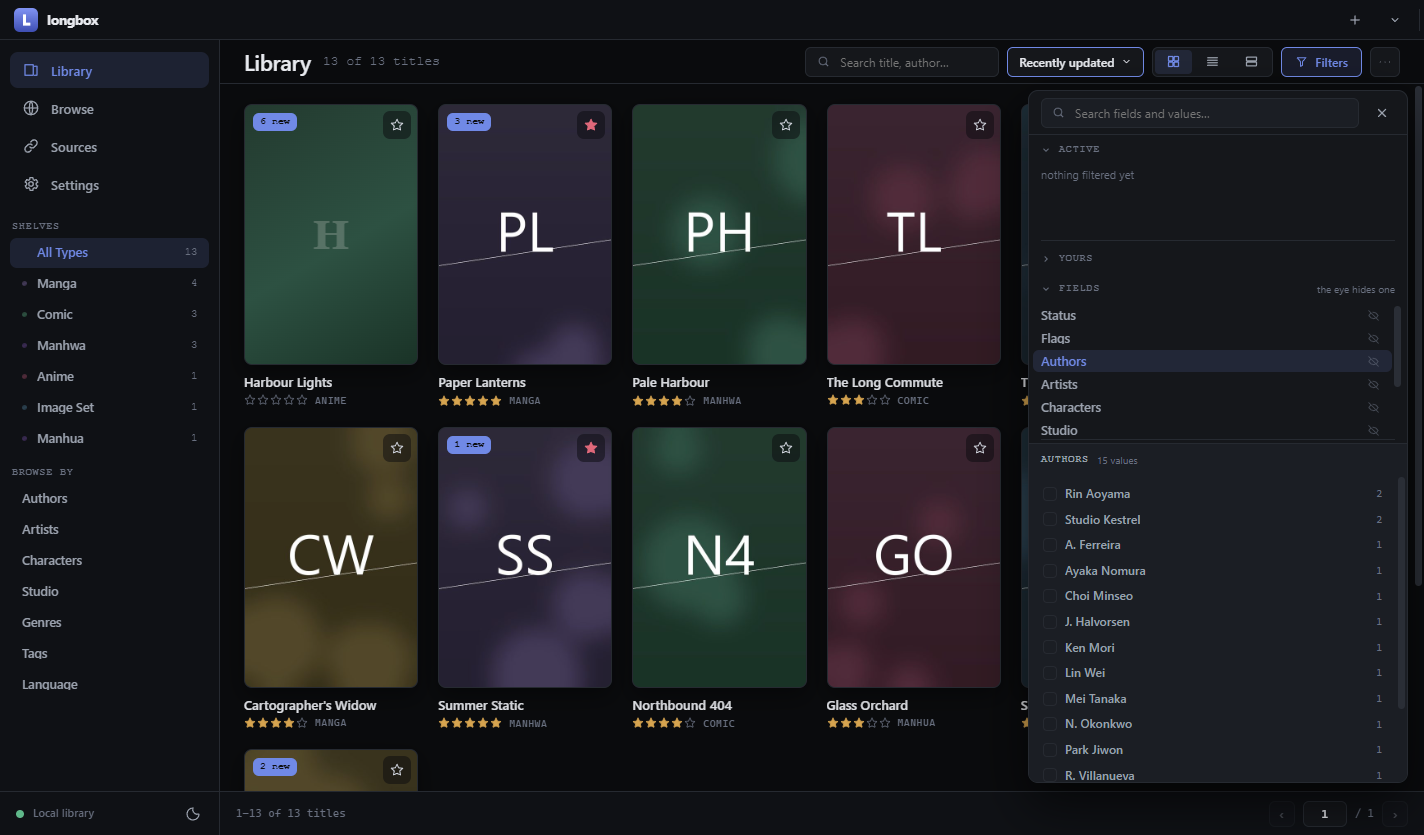
The library grid with the faceted filter rail
The library, dark theme. The sidebar's counts follow the current selection.
The library in dense list mode
Dense mode: chapter and page counts, authors, status at a glance.
A title

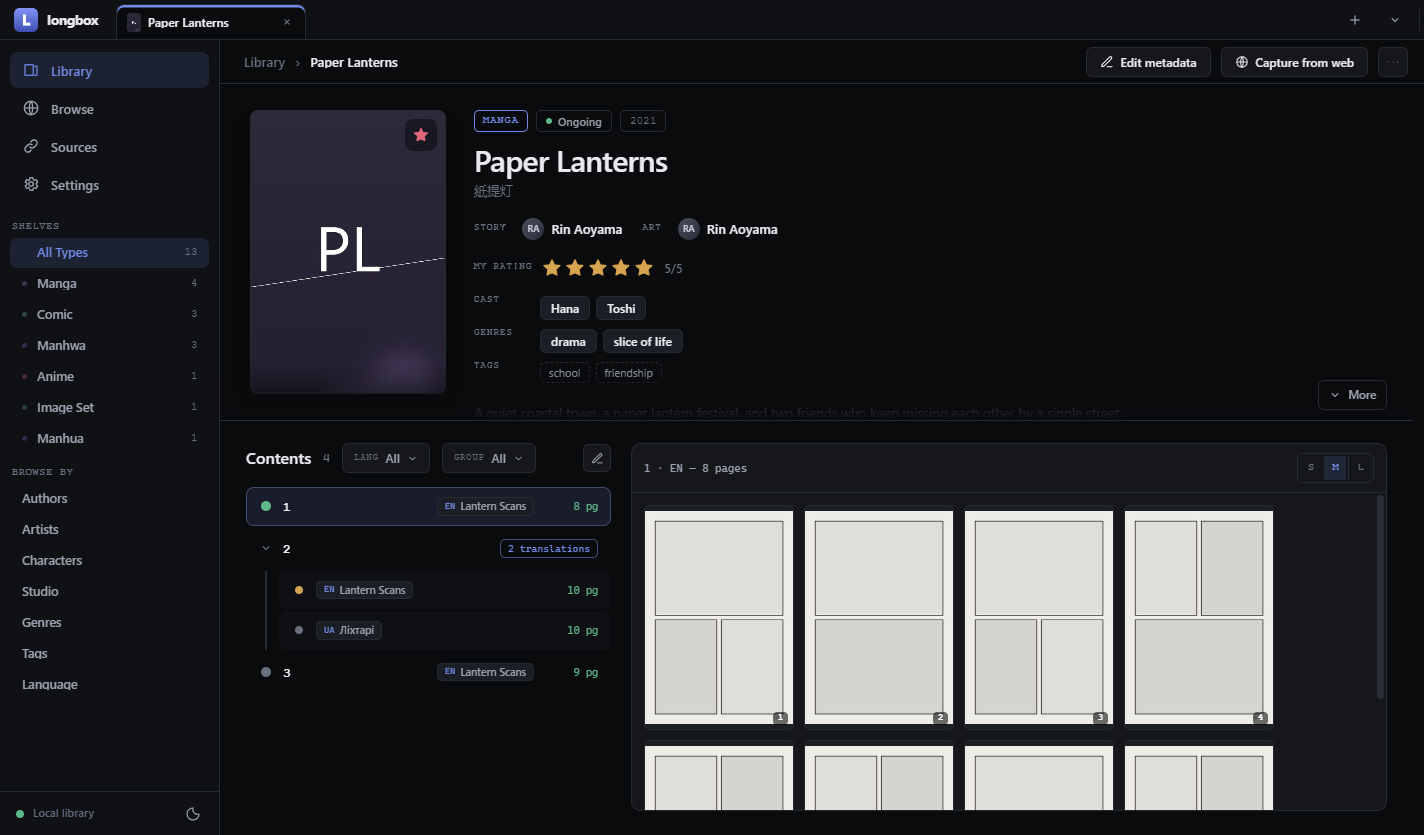
Chapters, translations and pages — in one place

One row per translation, grouped under a shared label, with language and group chips. Edit mode adds entries by hand, attaches or replaces archives, imports loose images or a whole folder, moves pages between entries, and reorders pages by dragging. Every metadata field remembers whether it was captured automatically or typed by you — automatic capture can never overwrite your edit.

Covers are added, removed and reordered by dragging in the same editor; the first one is what the title wears. Every stored file is renamed to its entry, so the name it arrived under is kept with it — hover the entry's file to see it, along with where it came from.

A title page with its chapter list
A title page: metadata, people as links, and the contents tree.
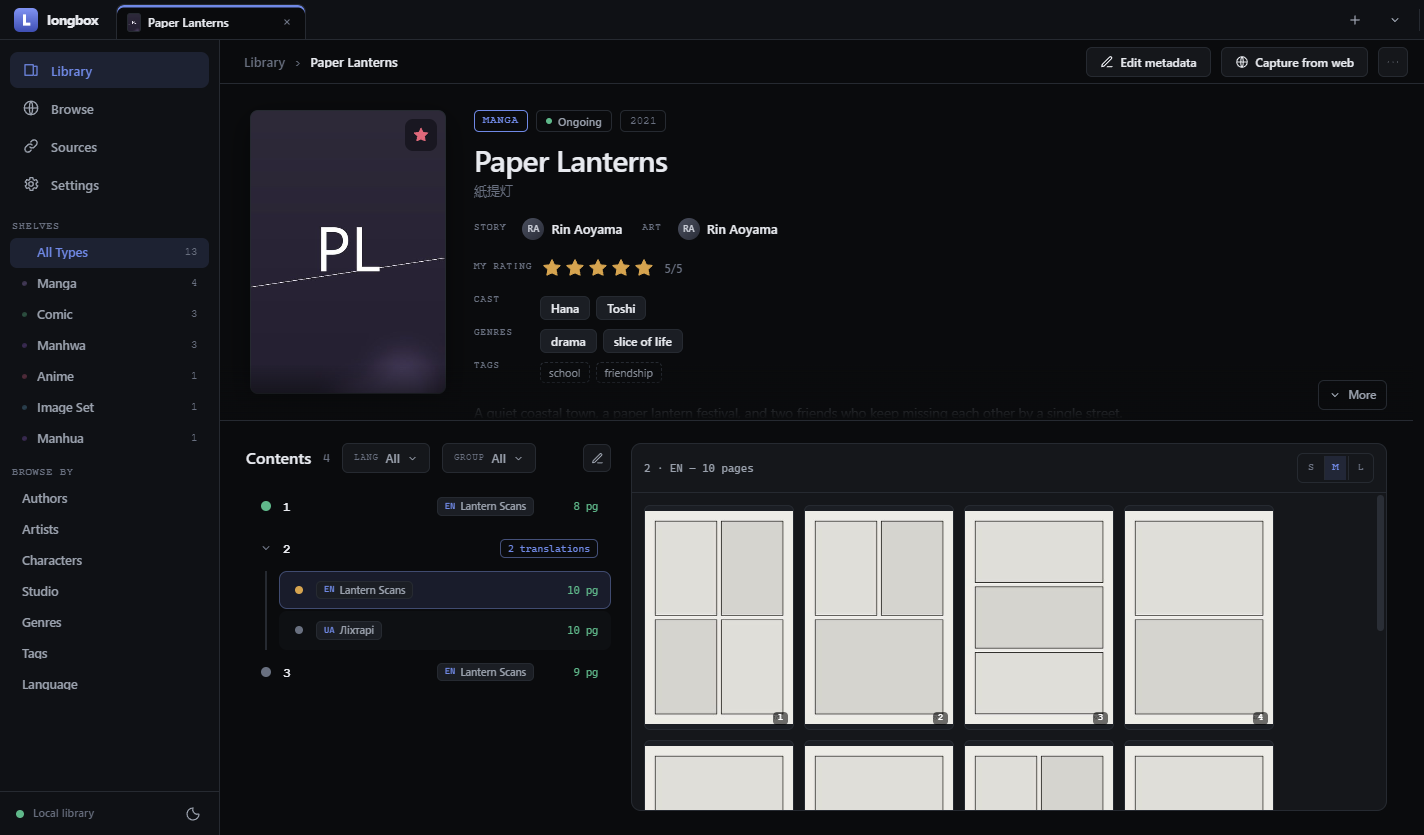
The pages gallery of a chapter
The pages pane: select with Shift+click, move pages to another entry, delete, rearrange.
The reader

Reads only your vault — so it works offline by construction

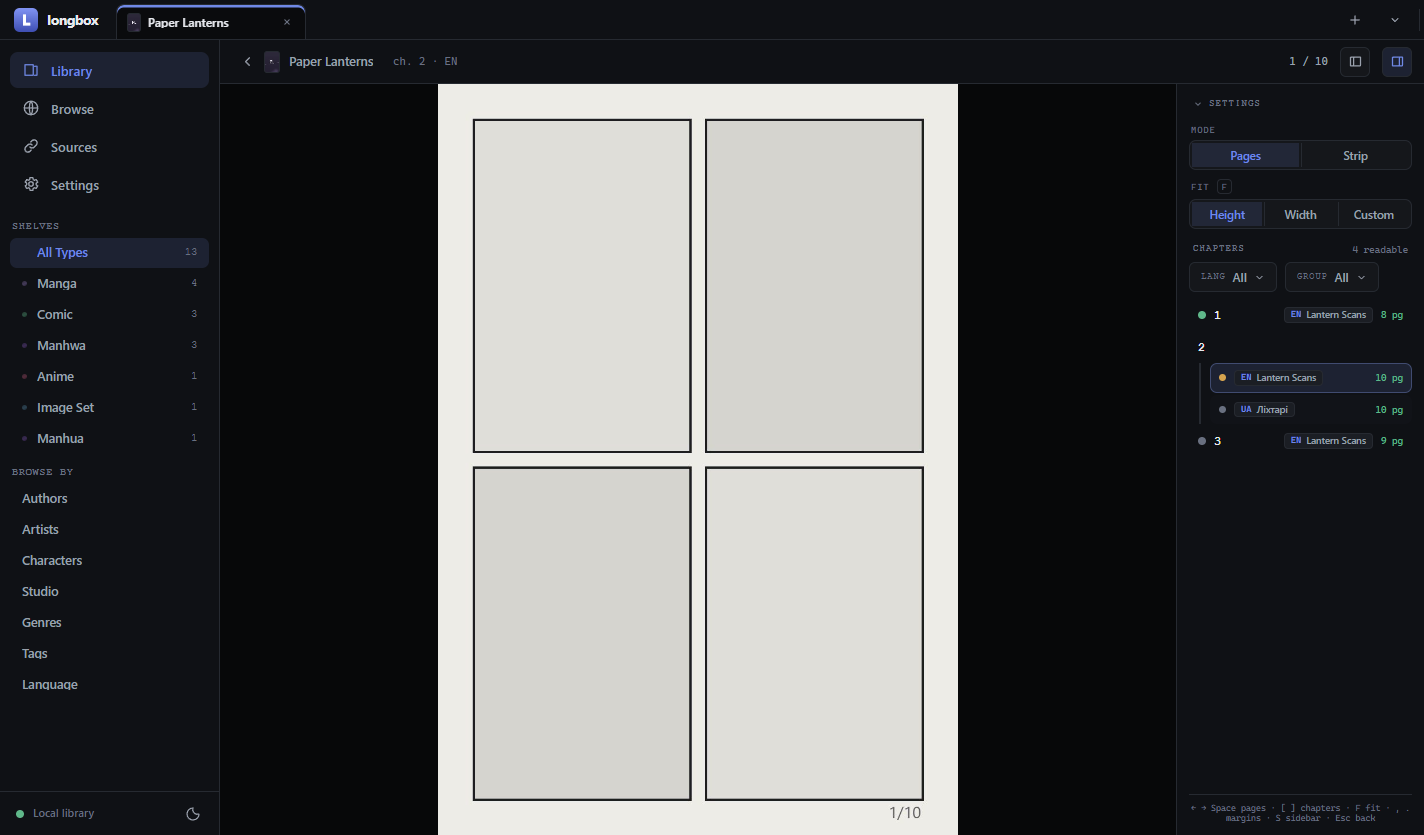
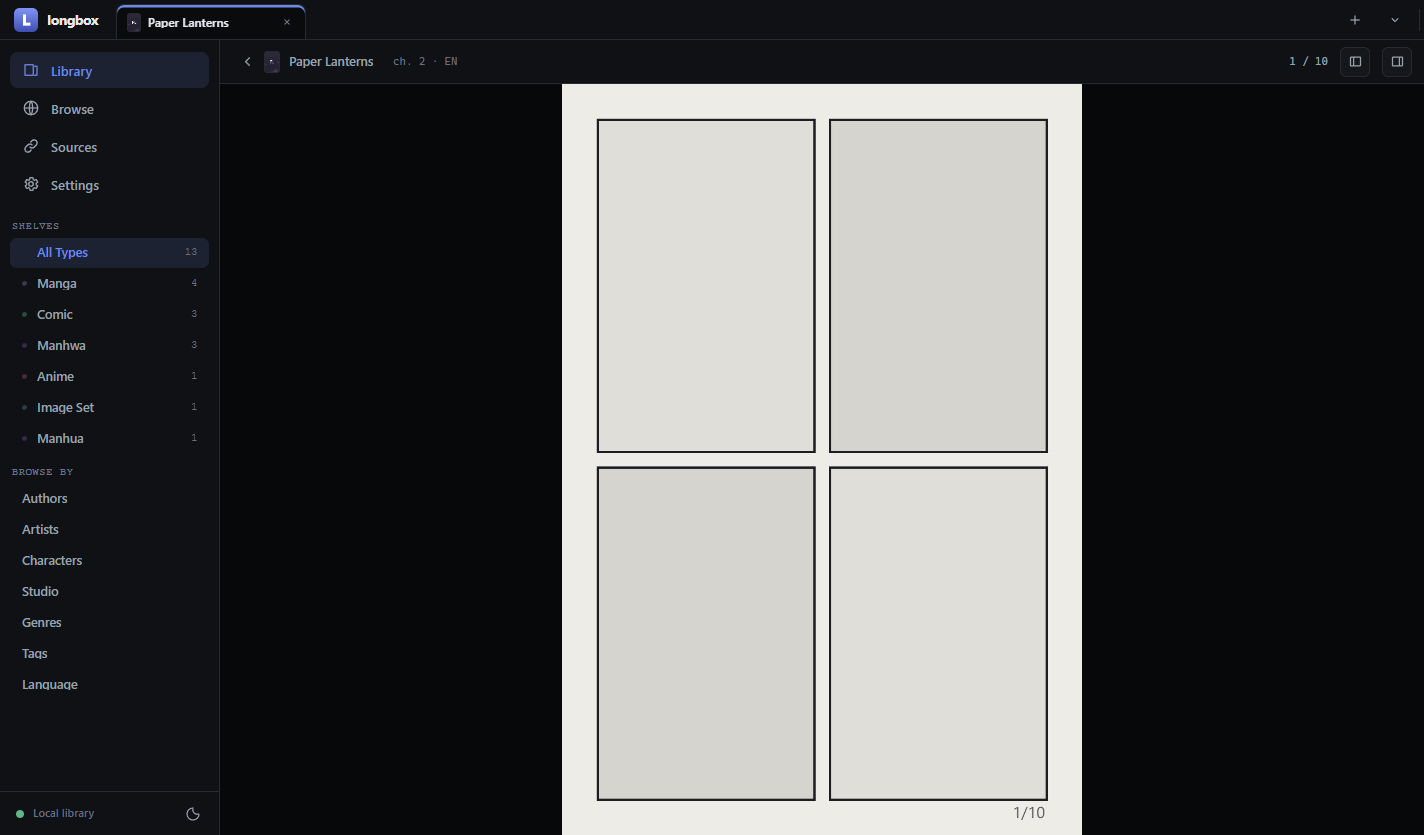
Page mode and continuous strip, fit-to-height / width / custom, adjustable margins, and a hideable rail of page thumbnails. Chapter navigation moves between labels and keeps the translation you were reading. Progress is written through instantly. Every shortcut is rebindable, bound to the physical key so it survives a keyboard-layout switch.

The reader showing a page
The reader with its chapter sidebar.
The reader with the page thumbnail rail open
The left rail: every page of the chapter, click to jump.
Episodes

Video is content here, not an attachment

An episode is a chapter like any other — it carries its language, group, source and reading state — but it is stored as the file it arrived as, streamed rather than copied, and it remembers where you stopped. Leaving the page and coming back offers to resume, and so does opening it in the full-window player.

It gets in the same ways a chapter does: an armed download from a source, or a file or whole folder you already have, dropped on the entry. Attaching a new file replaces the media and keeps the entry — read state and translation rows survive. An mp4 whose index sits at the end has it moved to the front on the way in, so playback starts at once instead of fetching the tail first.

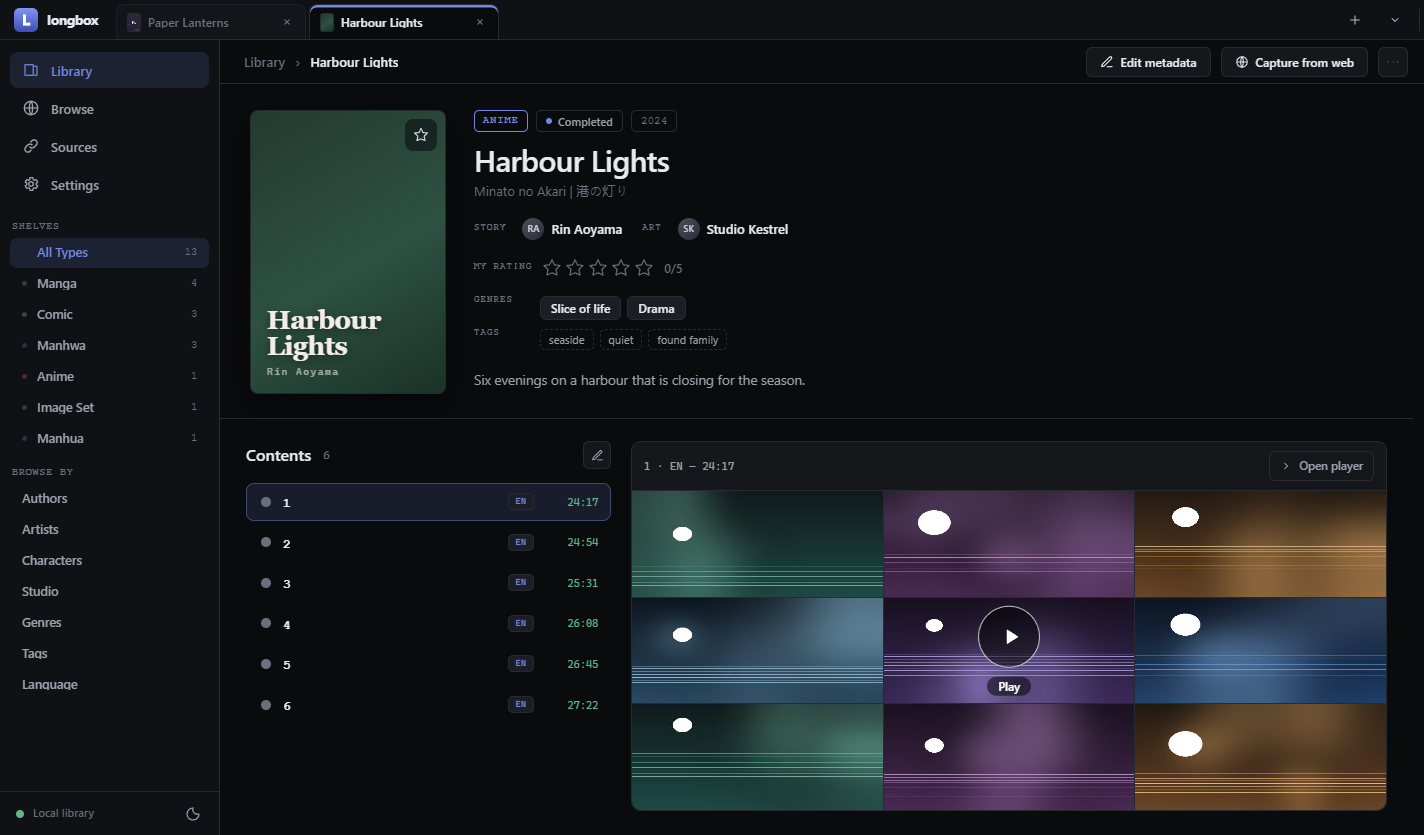
Its preview is cut from the file itself: nine frames laid out as a contact sheet, each tile a link to the second it came from, so you can see what an episode is before playing it and start where you meant to. That happens once — the frames are stored beside the media in your vault, and nothing re-reads the video to draw a thumbnail again. There is no decoder in the app: the window that plays the file is what draws the frames.

Playback is in place, on the title page, with arrow-key scrubbing and the player's own controls; the same surface fills the window when you want it to. A file that is playing is never replaced or deleted under the player — the app says which entry to close first. Files a browser cannot play (mkv, avi, mov, ts) are still stored, listed and catalogued, and say so, with the file offered for saving elsewhere — nothing is silently dropped.

A title page showing an episode as a grid of nine frames cut from it
An episode before it plays: nine frames from the file itself. Click a tile to start there.
The capture browser

Teach a site once, then just read

longbox embeds a real browser and lets it behave like one: tabs you can pin, reorder, mute and open in the background, a floating find bar, a page context menu, and the shortcuts your hands already know — F5, Ctrl+F, Ctrl+L, Ctrl+T, Alt+←, Ctrl+1…9 — working over the page itself, not only over the app's chrome. You sign in on the site; the app never sees your password and never fetches anything you did not open. What it does see, it can capture: click an element and refine the selector in the inspector, with a live preview of the exact value that would be stored — including how several matches are joined when the field holds one.

A work whose tags are spread over several pages can have them merged instead of replaced. And when you auto-fill a new draft over a page your library may already hold, longbox says so first — with what each candidate record is, its type and where it came from — rather than quietly creating a second copy of the same work.

Browser page belongs to the site Snapshot one explicit read Draft yours to edit Vault files on disk navigation never touches the draft · the commit is a button, never a side effect
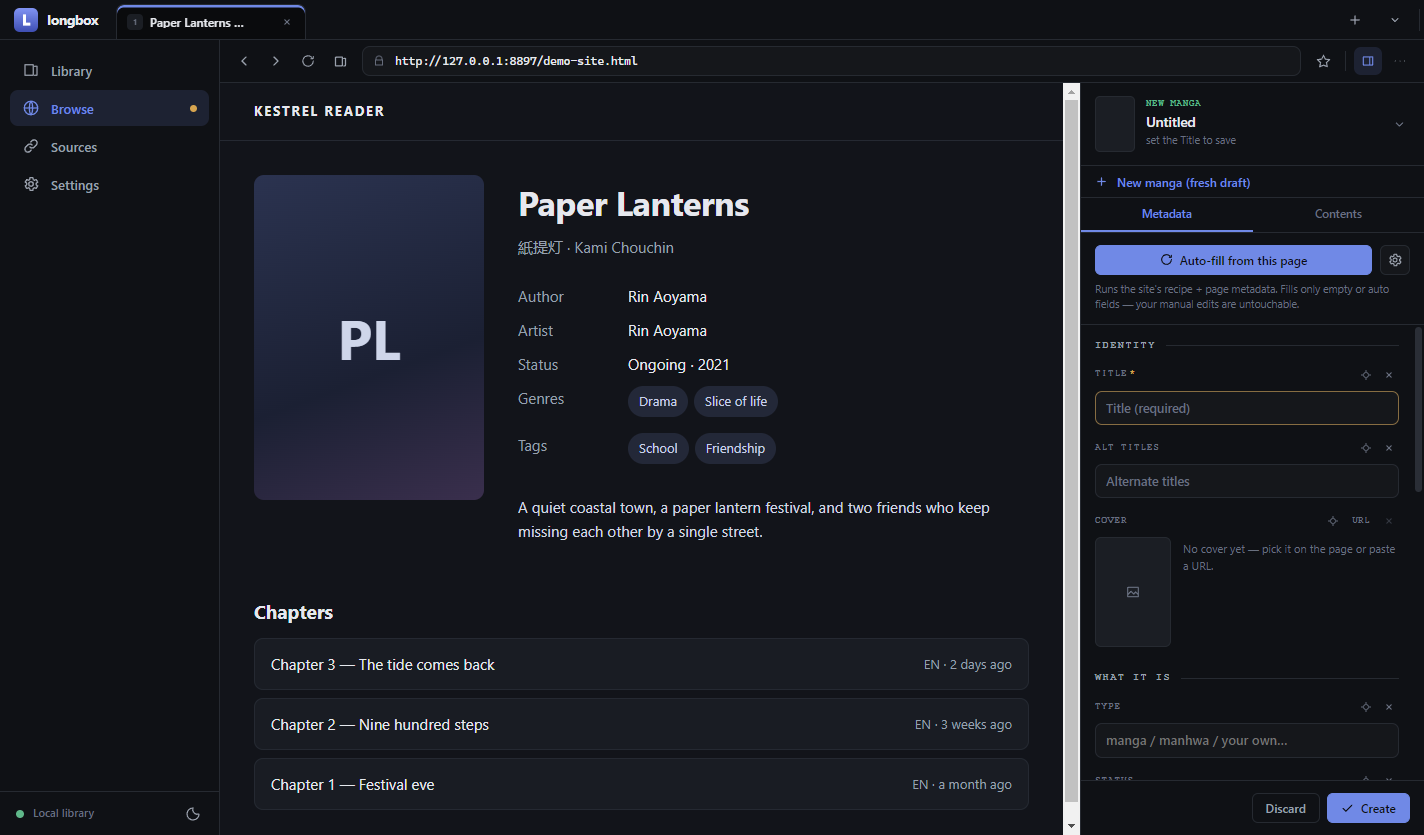
The capture browser with the draft dock open beside a source page
The browser on the left, the draft on the right. The page shown here is a demo stand-in.

Getting a title in

  1. Open the title's page

    In longbox's own Browse tab, on whatever site you use. Sign in there if the site needs it — the app only ever sees the session, never your password.

  2. Open a draft, press Auto-fill

    On a site longbox already knows, the title, alt title, authors, tags, description and cover fill in at once. On a new site nothing is invented: only the page's own metadata is used until you teach the rest.

  3. Correct anything by hand, or teach a field

    Click pick next to a field and then the element on the page. The inspector shows what would be stored, right now, for every match. What you teach is remembered for that domain, so the next title from the same site fills itself in.

  4. Save

    The title becomes a folder on disk. Fields you typed are marked as yours and no later capture can overwrite them.

Getting the chapters in

Three ways, because sites differ. All three end with the same thing on disk: one plain zip per chapter — or, for an episode, the video itself — with a note recording where it came from.

① The site offers a file

Name the chapter in the dock and press Add + arm download. Then click the site's own download button. longbox catches that download, files it into exactly that chapter and records the source. One arm, one download.

zip, cbz, rar and 7z all work — anything not already a zip is converted on the way in.

② The site only shows pages

Switch the dock to Pages, click one page image so longbox learns which images are pages, name the chapter and press Start page capture. Then just read it. Every page you open is fetched and appended, in order.

Pages you already have are never fetched again, so going back a page costs nothing. Finish chapter closes it and offers the next number.

③ You already have the files

On the title page, open the contents editor and drop in an archive, a set of images, or a whole folder. Pages can be reordered by dragging, moved between chapters, or deleted.

Useful for scans you made yourself, or a backup from another app.

Downloads you can watch and stop

A panel over the app lists every transfer by title and chapter with its progress, and any of them can be stopped. Closing the window while something is still coming down warns first: each transfer keeps its place — the part already fetched, the entry it was claiming — so the next launch can pick it up where it stopped, or start it over when the source will not honour that.

Why it downloads what a browser downloads

Page images are fetched with the embedded browser's own cookies and the reader page as referer — the very same request the page makes for itself. That is why gated chapters and hotlink-protected CDNs work at all, and why nothing works that you could not open yourself.

Chapters, translations, languages

A chapter is a label plus a language and a group, so two translations of chapter 12 are two rows under one label — each with its own file, its own pages and its own read state.

longbox is a library manager, not a scraper farm. It has no crawler, no bulk queue and no way to fetch what you have not opened yourself — the human sets the pace by construction.

People come out of the library, not a form

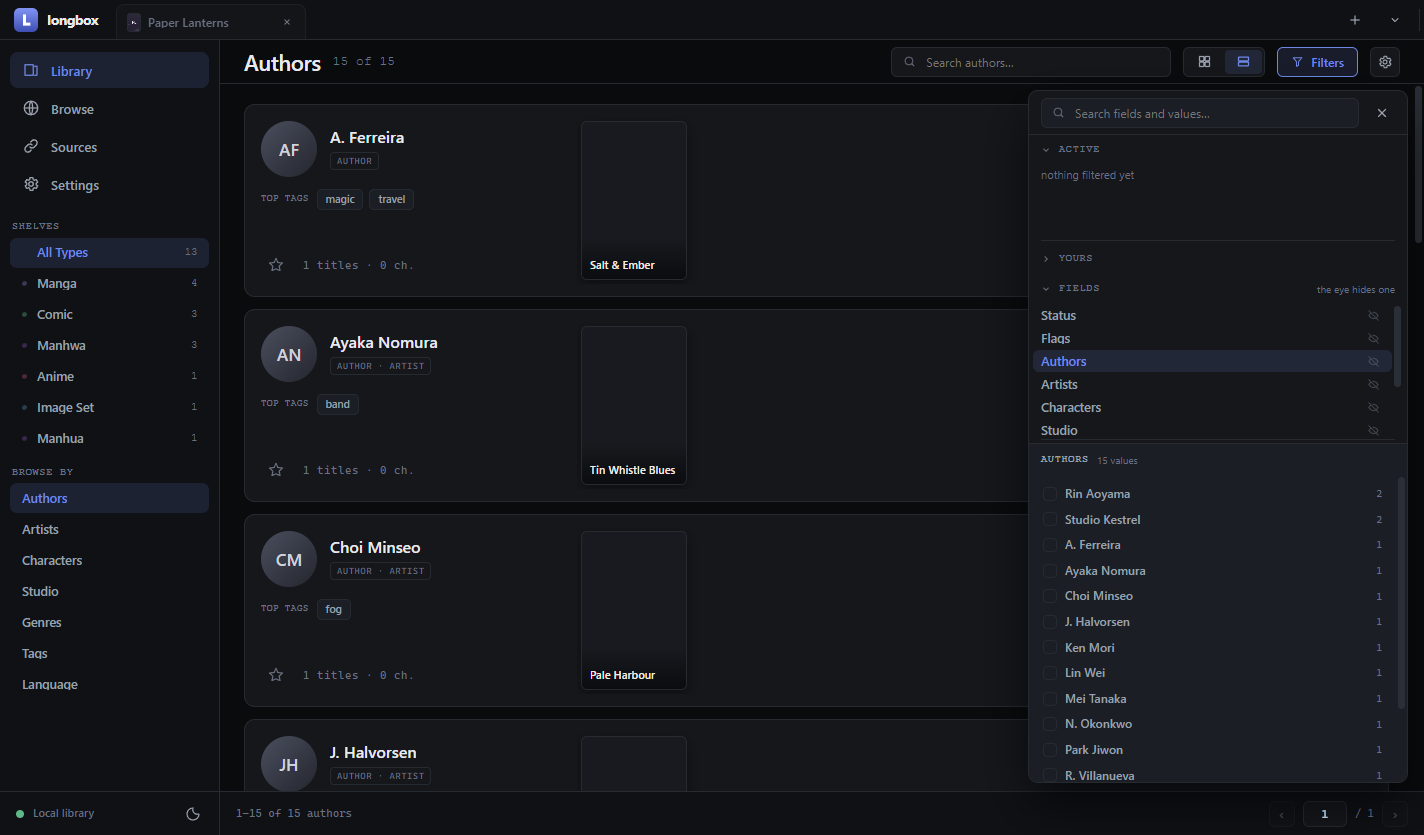
Authors and artists are aggregated from what you captured, with their role, their works and their most common tags — click any name anywhere in the app to filter the library by it.

The authors view

Sources are the sites you actually use

A site becomes a source the moment you bookmark a page on it, and waits under NO RECIPE until you teach it one. Each source keeps its recipe, its bookmarks and the metadata fields it offers; sources sit in groups you name, which fold away in the browser, and groups and bookmarks keep the order you drag them into. A site you are done with can be frozen: it keeps its recipe and its links and stays in Sources, but stops being offered in the browser — until you thaw it.

Get started

Four steps, then it's yours

Download, install, open. Everything below happens inside the app — there is nothing to configure on disk and no command line involved.

  1. Point it at a folder

    Settings → Storage. Any folder works; longbox indexes whatever is already there and never moves files you did not ask it to.

  2. Add a title

    Browse → open the title's page on the site → New title in the capture dock → Auto-fill, or pick fields one by one. Save.

  3. Get the chapters in

    Either arm a download and click the site's download button, or switch the dock to Pages, teach which images are the pages, and read the chapter through.

  4. Read

    Everything after this point is offline. The reader only ever opens your own files.

macOS: the builds are signed ad-hoc, not with a paid Apple certificate, so the first launch shows “longbox cannot be opened because the developer cannot be verified”. Right-click the app → Open → Open. Once only.
Storage

Nothing you can't open without longbox

The folder on disk is the truth; the search index is a cache that can be deleted and rebuilt at any time. Every chapter of pages is a plain zip — CBZ is the same container — so any comic reader opens them; archives that arrive as rar or 7z are converted on the way in, and an episode is kept as the video file it arrived as.

Each archive also carries a ComicInfo.xml describing its work, so the library reads correctly in Komga, Kavita and anything else that speaks the format — it outlives this app. The file is a mirror, written where an archive is being rewritten anyway; a metadata edit never silently rewrites gigabytes, and Settings brings the rest in line on demand. An archive that already describes itself names its own entry on the way in.

library/
  index.db                     rebuildable cache — safe to delete
  recipes.json                 what longbox learned about your sites
  sources.json                 your sites: groups, bookmarks
  manga/
    paper-lanterns/
      title.json               metadata · provenance · chapters · your layer
      cover.jpg                the first cover; more as cover-2.jpg, cover-3.jpg…
      chapters/
        ch-1-3f9a0c12.zip      the pages, with ComicInfo.xml inside
        ch-1-3f9a0c12.json     source · the name it arrived under · checksums
  image-set/
    neon-fieldwork/…
GuaranteeWhat it means in practice
Atomic writesA write either lands whole or not at all; a crash mid-save cannot leave a half-written title.
Your layer is separateFavourites, ratings and read progress live apart from metadata — a re-capture never touches them.
The folder is the libraryRecipes, sources, bookmarks and reader settings live in it too — copy it to another machine and it arrives whole. What stays behind belongs to the machine: your sign-ins, where its libraries are, its caches.
Nothing is orphanedRe-capturing a chapter list keeps downloaded files bound to their rows; media is removed only when you say so.
ProvenanceEach field records whether it came from a site or from you; each downloaded file records its source and the name it arrived under.
ChecksummedEvery stored file is hashed as it lands — once over every byte, once over its ordered pages — so the vault can later prove what changed.
Converting .rar needs an unrar (or bsdtar) binary on your PATH. Without one, longbox leaves the file untouched and tells you — it never rewrites an archive it cannot read.
Integrity

A vault you can ask whether it is still whole

Settings → Health runs one check with three answers: is anything broken, is anything wasting space, is anything missing. A quick check compares the disk against the record; a full check re-reads every byte. Either can be stopped, and a report cut short says so. Nothing here runs by itself, and nothing changes your files.

Answers are sentences about files — the file is gone, the file changed since it was stored — and each says what to do about it. Content stored twice is found by what the pages are, not by the file that holds them, so a repack or a renumbering does not hide a duplicate; which copy to keep is your call, never the app's. Numbering gaps are claimed only where the entries provably form a run. Leftovers of interrupted writes are the one thing deleted here — after every one is listed with its size.

What has been done is recorded with the library: when each check ran, how long it took and what it found, with the last report kept in full — so a check that took an hour is still there after a restart.

Settings

Only what the app actually does

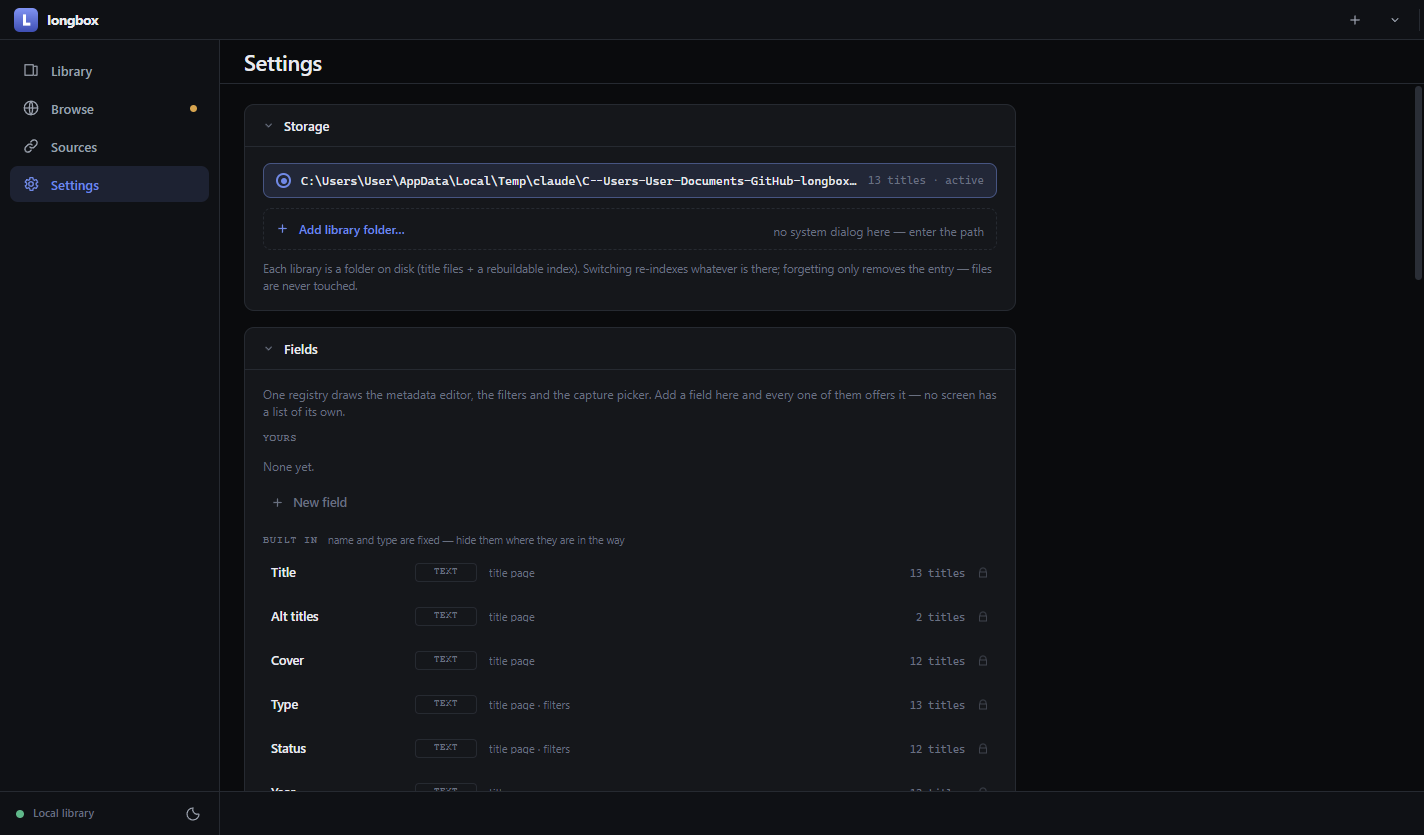
One section at a time, from a rail that shows what needs you before you open it: Storage (multiple library folders with instant switching), Health, Maintenance (rebuild the search index, convert archives, write metadata into them), Fields, Browser (homepage, one-click cookie or cache clearing), Appearance, Keyboard and About. Everything that walks the library shares one slot, one progress bar and one stop button — and leaving the page does not lose what is running.

The settings screen
The library in the light theme
Light theme. Both themes are first-class; the app follows your system by default.